Slider
A Slider allows the user to select values in a linear range of values.

Usage
Use a Slider when you need a selection from a range of values where we want the user to play with the possible values. A popular use is changing the contrast color value for an image. Other uses could be: setting the volume of audio, the reproduction bar of a video or adjusting a filter in a faceted search, etc.
A Slider shows a range of values along a bar, from which users may select a single value. It has default values for its range: min to max — 0 to 100, each. However, these values can be tailored depending on what’s needed.
STEPS
Additionally, a step value can be set. A step specifies the size of each thumb movement (the increment or jump between values) of the Slider control. Layout
Layout

- Progress, this shows the value of the range selected. Can be transparent.
- Thumb, this is used as a knob to select a specific value from the range.
- Track, this is the rail where the thumb moves. It represents the full range of values.
States
Active

Hover
 The browser will determine the cursor to display based on the current context
Disabled

Focused

Interaction
MOUSE
- Once the thumb moves, it updates the slider value
- A mouse click/tap on the track moves the thumb to that point in the track
- If a step is defined, the click/tap moves the thumb to a step in the track.
Tooltip
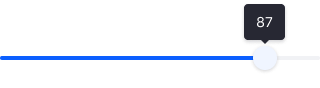
It shows the current slider value. Showing the tooltip is optional as a slider can be combined with other components (inputs, labels, etc). It’s shown when the user hovers over the thumb.
Drag and Drop
The Thumb only moves horizontally so It can be dragged and dropped from right to left and left to right.
 Thumb Hover
 Thumb Drag
KEYBOARD
- Right Arrow: Increase the value of the slider by one step.
- Up Arrow: Increase the value of the slider by one step.
- Left Arrow: Decrease the value of the slider by one step.
- Down Arrow: Decrease the value of the slider by one step.
- Home: Set the slider to the first allowed value in its range (minimum).
- End: Set the slider to the last allowed value in its range (maximum.
- Page Up: Increment the slider by an amount larger than the step change made by Up Arrow.
- Page Down: Decrement the slider by an amount larger than the step change made by Down Arrow.