Cards
Cards are a specific form of data visualization focused mainly on displaying images.

Usage
A card is a pattern that relies heavily on imagery, therefore, we recommend that you only use cards if you have images associated with your content. A practical use case for this could be your users database or an image library.
Cards are meant for a light comparison of information rather than an exhaustive comparison. If you have exhaustive information to compare, which doesn't contain images, use a table instead.
Cards can have various configurations. We provide a flexible card layout that is fully customizable, so you can create the UI you need. See the example configurations throughout this page to get inspired.
Card interaction
- A card can have a checkbox, a radio button, or neither of them.
- You can select a card by using the checkbox or radio button or the image area.
- The main text in the card can be used for navigation: _ When used in a Folder card, it navigates to the next level. _ When used in a File, Image, or User card, it navigates to its detail view. _ Never use the navigation to view a preview. This is always a secondary action placed inside the action menu. _ If the link drives the user out of the site, please identify visually that this link will open in a new page.
- When the card title is hovered a tooltip has to appear showing the entire element title.
Layout
By providing a flexible layout, Lexicon gives you a wider range of possible configurations for your card. You can adapt the layout to suite your needs, so it just contain the elements you require.
A card contains the following elements:
- The image area: The main element in this pattern. It has a 16:9 aspect ratio.
- Checkbox or radio: This is useful when working together as a visualization type with a management bar.
- Sticker or User image: This is useful to identify the file type or the owner.
- An information area _ Informative text: This contains relevant information, such as the description. _ Actions menu: This contains actions associated with the card.
The only required element for a card is the image. Everything else can be removed.
States
Default
Hover

Active

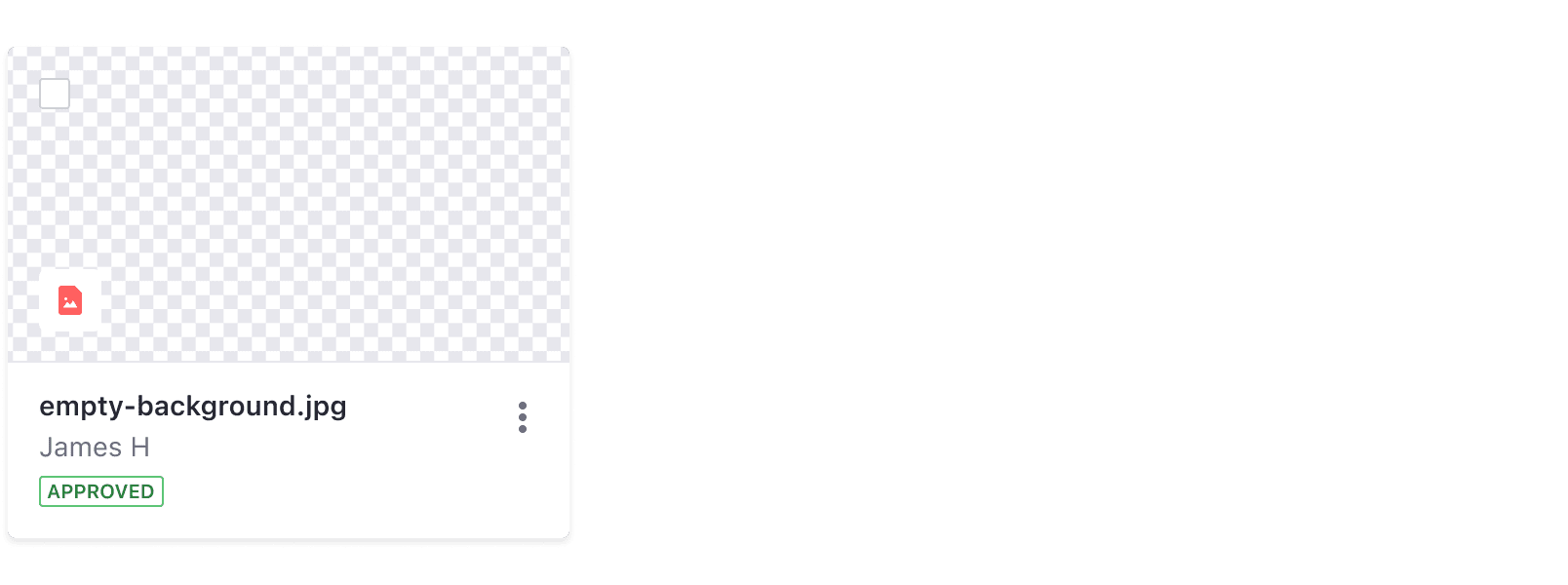
Empty
Attributes
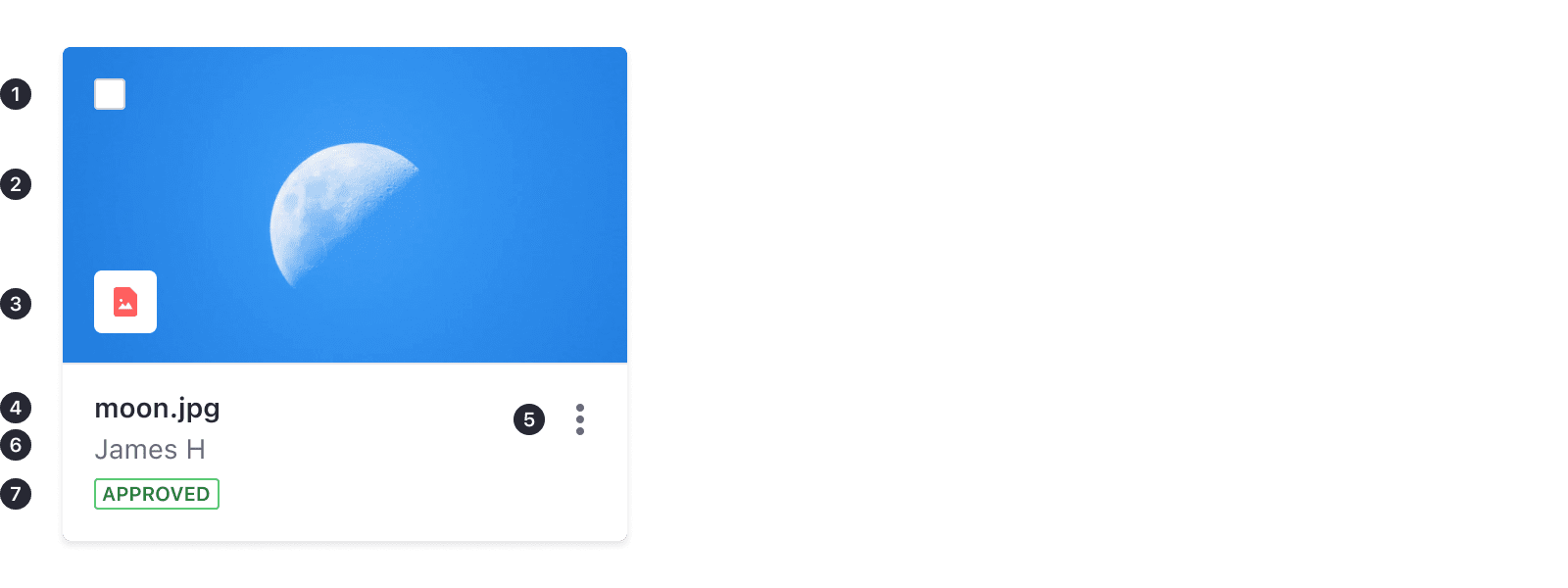
- Checkbox
- Image
- Sticker: file type
- Title
- Actions button
- Detail or short descriptive text
- Label: status identifier
Sections
Card sections organize content into separate divisions by a certain categorization or typology.

Examples
See the dataset template for a practical use case of cards.